
The visual engine searches the full board image index and returns the 3 closest candidates first.
Screenshot matcher
Find the Pixel Flow Level from a Screenshot
Upload the board you are stuck on, pick the closest preview, then open the guide or walkthrough for that level.
It compares board outline, color placement, and grid layout before linking guides or walkthrough videos.
We do not store or share your screenshot. It is used only to find the closest Pixel Flow level.
Find your level
Drop a clear board image, choose the matching preview, then open its route.
Upload a PNG or JPG with the full board visible. Guide and walkthrough links appear after matching.
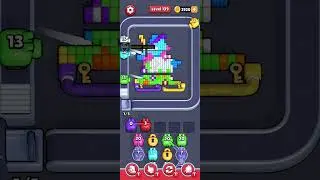 Level 139: Known repeated-video level
Start from the largest exposed path, then leave mixed edge pixels alone until that path creates a larger shooting lane.
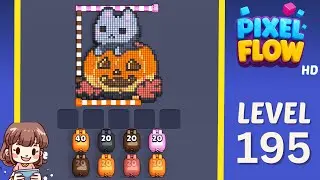 Level 195: Shared-video hard level
Pick the largest safe color mass first, then use the newly opened area to decide whether the route is actually the same as the video.
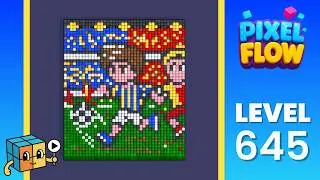 Level 645: Wrong-layout hotspot
Start with the white perimeter because it separates the four quadrants. Once the cage breaks, use grouped pink corners and then work into the cyan locks.
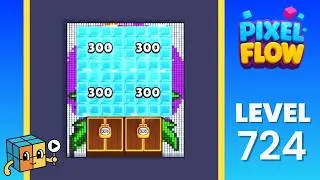 Level 724: Frozen blocker board
Use the side strips first, then spend high-ammo pigs into the ice and chest blockers. The goal is opening space before chasing the hidden butterfly colors.
Reliability checklist
Confirm the board before following the route.
The right level should match by picture: board outline, exposed colors, and tray pressure should all make sense before you spend boosters.
Board outline
The outside shape should match before you trust the level number.
Exposed colors
The first visible color groups should sit in the same places.
Tray pressure
If the result is a hard board, check whether the same first opener exists.
Nearby range
Open nearby levels when the result is close but one region looks wrong.
How to read results
Open the page that matches by picture.
The best result is the one whose preview, first clearable color, and nearby range all line up with your screen.
1
Check the silhouette
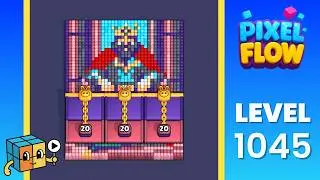
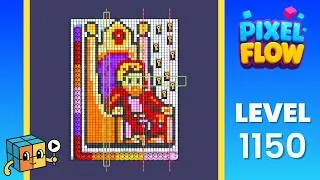
Look for the big shape first: flower, snake, throne, wall, pocket, or split lane.
2
Compare exposed colors
If the visible color groups differ, use the screenshot matcher instead of forcing the same walkthrough.
3
Choose the opener
The opener is the color that creates new space, not the color with the easiest single pixel.
4
Spend only after the route is real
Use Add Tray, Hand, Shuffle, or Super Shooter when the booster changes the next move.
Hard boards to compare
Try these when a screenshot result looks close but not exact.
Some level numbers have repeated videos or lookalike boards. These pages give you good nearby patterns to compare before choosing a route.
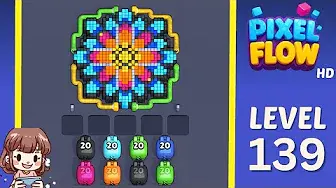
Level 139
Known repeated-video level
If the thumbnail, board image, or first exposed lane does not line up, open the screenshot matcher and compare nearby Levels 135-143.
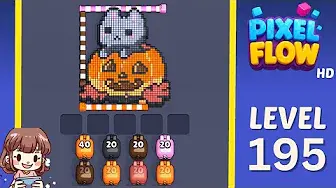
Level 195
Shared-video hard level
Compare Levels 189-202 if the first mass or adjacent image looks off; use screenshot matching before spending paid resources.
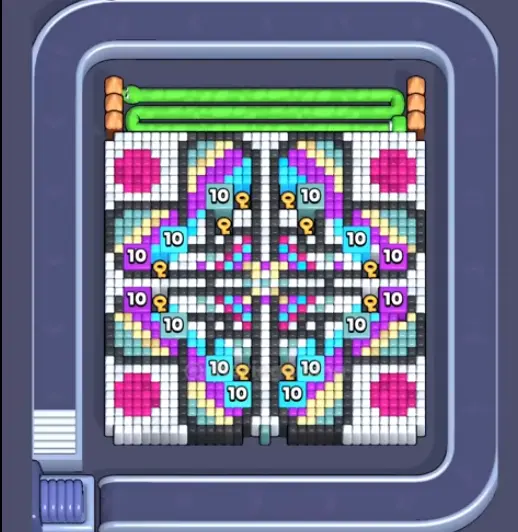
Level 645
Wrong-layout hotspot
If you do not see the white cage, four pink corners, and cyan numbered locks, this is not the same Level 645 route.
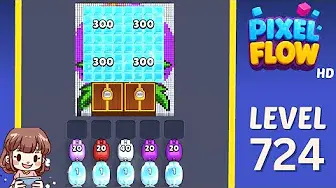
Level 724
Frozen blocker board
If your board does not show the ice-and-chest blocker pattern, compare Levels 709 and 745 or match a screenshot before using this route.
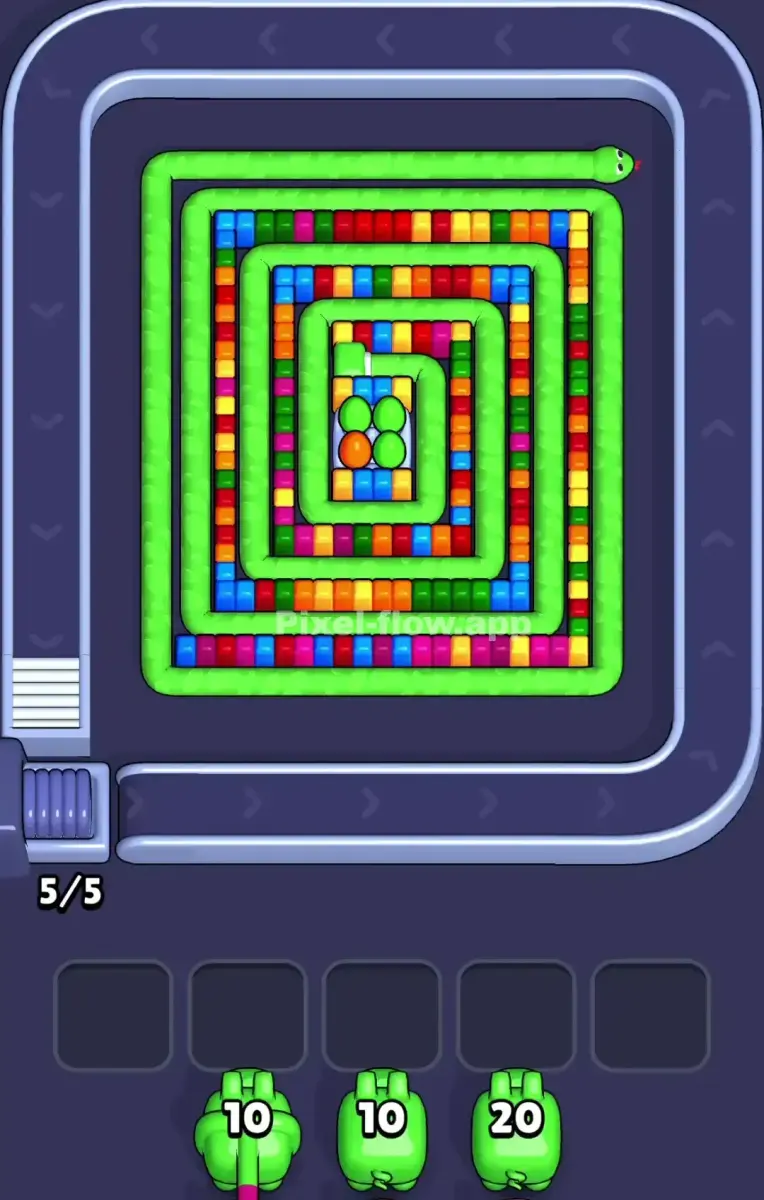
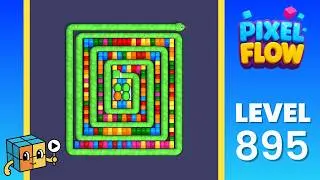
Level 895
Snake-style board
If the board is not a green spiral, do not follow the snake route; use screenshot matching and compare Levels 891, 899, and 900.
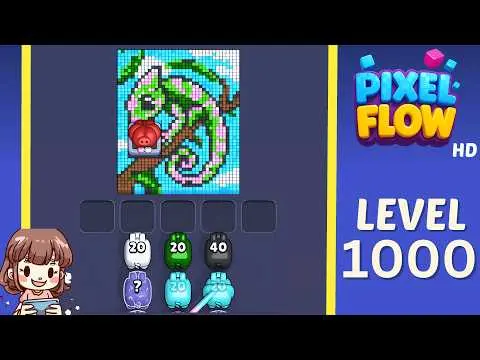
Level 1000
Enhanced Board Read
If Level 1000 does not match your screen, use screenshot matching before spending boosters. Levels 998, 999, 1001, 1002 are the closest picture checks.